📦 How to Create a Pickup Request
Follow these simple steps to set up your profile, add packages, and book a pickup with shipping labels ready to print.
| ⏱️ Approx. read time | 3–4 mins |
| 🧭 Audience | Book Donors / Smart Sell Plan Sellers |
| ✅ Applies to | Pickup Requests v1.0 |
👤 Step 1 — Create Your Profile
Start by setting up your profile. Ensure your account details are complete and accurate so we can process your pickup smoothly.
🏠 Step 2 — Add Your Pickup Address
Go to the My Addresses section and add the address from where the shipment should be collected.
You can store multiple pickup addresses and choose the right one at the time of creating a pickup request.
📦 Step 3 — Add Your Packages
Navigate to the Packages section and add details for each carton box you plan to ship:
- Total number of cartons
- Dimensions (length × width × height)
- Approximate weight for each carton
Each carton is treated as a separate package entry. Make sure all cartons are added before creating your pickup request.
🚚 Step 4 — Create a Pickup Request
Once your address and packages are ready, go to the Create Pickup Request section.
- Select the pickup address from which the shipment will be collected.
- Choose all the packages you want to include in this pickup.
If you're not fully sure and might add or remove packages later, save the pickup request in Draft mode.
✅ Step 5 — Finalize and Book Your Pickup
After you have reviewed all details and are satisfied, change the status of the pickup request to BOOKED (or Manifested). At this point, your shipping labels will be generated automatically.
Once a pickup request is BOOKED, you can no longer change the pickup address or modify the package details.
🖨️ Step 6 — Download & Print Shipping Labels
Once the request is booked, your shipping labels will be available as a PDF file.
If you have multiple packages, each package will have its own label on a separate page. For example:
- 3 packages → 3 labels → 3 pages in the PDF
You can download a sample shipping label PDF to preview the format before your first pickup.
🧲 Step 7 — Attach Labels to Your Boxes
Print the labels and stick one label on each carton:
Stick the package label on the side of each box (not the top).
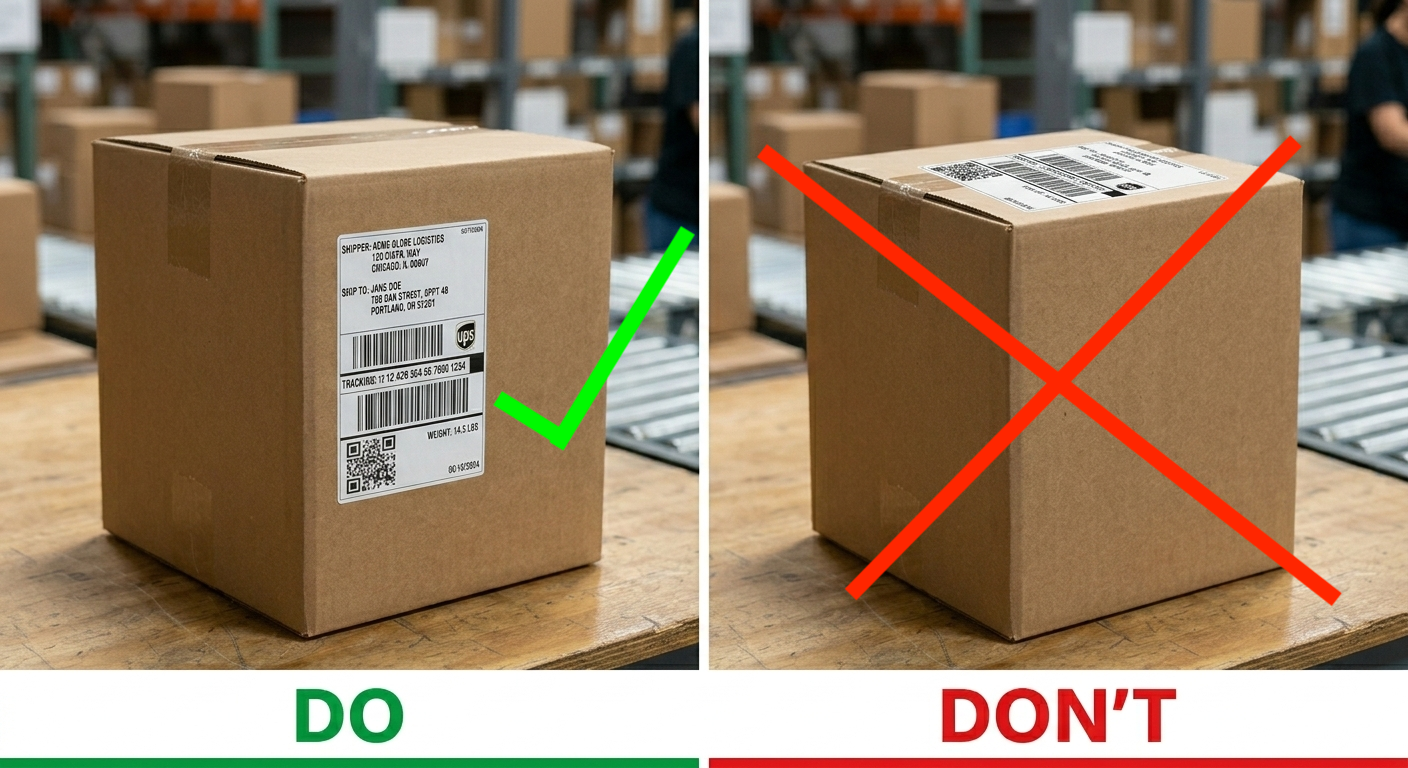
- Place the label on the side of the box
- Do not stick the label on the top
Need More Help?
Need more help? Contact support or raise a ticket from your dashboard.
Was this article helpful? 👍 Yes | 👎 Not really